Multi-Factor Authentication for Business Email: A Practical Setup Guide
Why Your Email Password Isn't Enough
Email accounts are among the most valuable targets for attackers. They're the key to everything else: password resets, contract negotiations, wire transfer approvals, payroll changes. If an attacker gains access to a business email account, they don't just read your mail — they intercept ongoing conversations, impersonate you to vendors and customers, and move laterally across connected services that use that email for authentication. A strong password helps, but it's not sufficient on its own. Multi-factor authentication (MFA) is the single most effective control you can add to protect email account access.
How MFA Works for Email
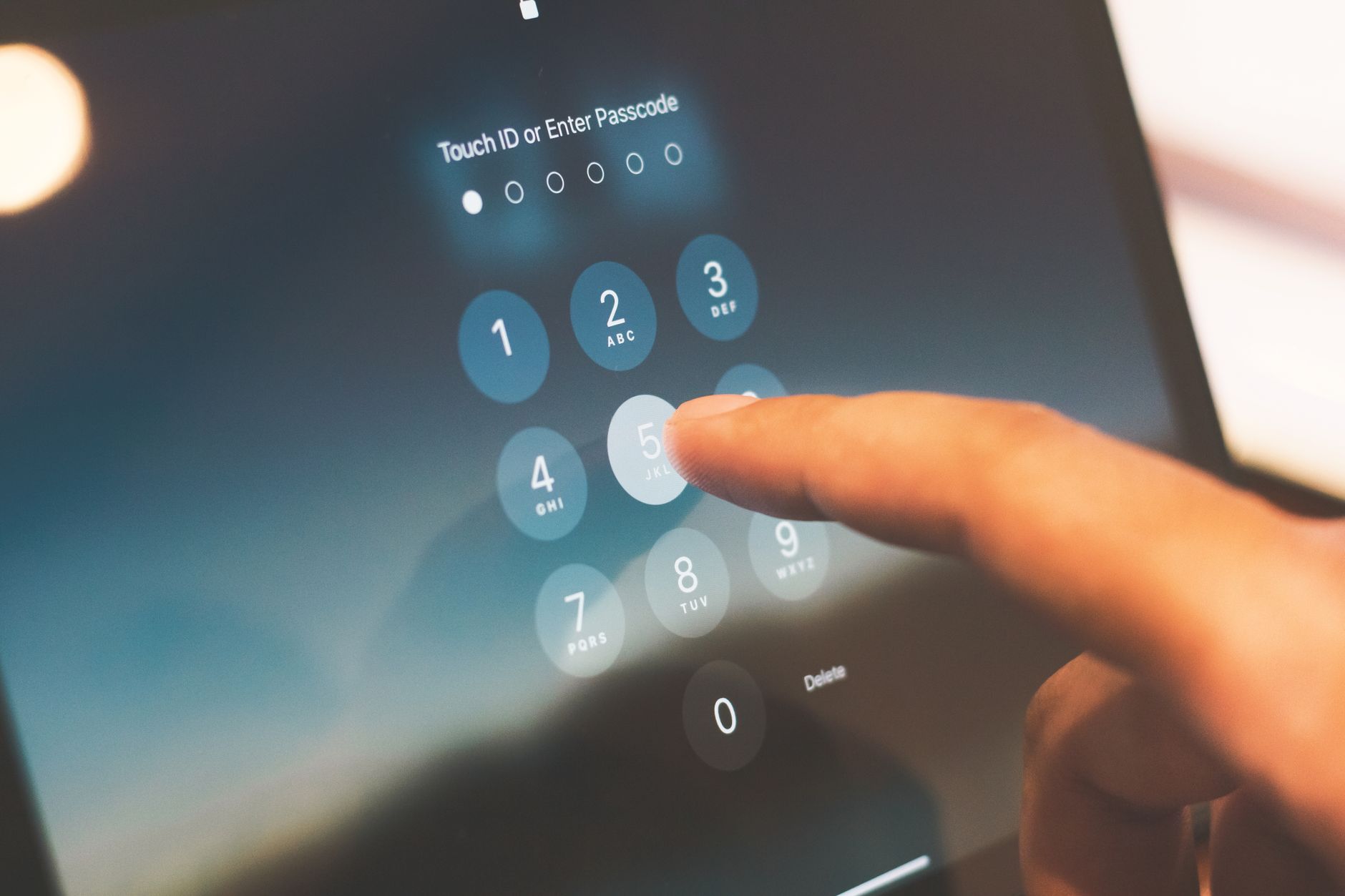
MFA requires a second verification factor beyond the password before granting access. The three factor categories are:
- Something you know: Password, PIN
- Something you have: Phone, hardware security key, authenticator app
- Something you are: Fingerprint, face recognition
For email, the most common second factors are time-based one-time passwords (TOTP) from an authenticator app, push notifications from apps like Microsoft Authenticator, or hardware security keys using the FIDO2/WebAuthn standard. SMS codes are also common, but they're the weakest option — SIM swapping attacks can intercept SMS-based codes without ever touching your device.
MFA Methods: Strengths and Weaknesses
Hardware Security Keys (Strongest)
FIDO2/WebAuthn hardware keys — such as YubiKey or Google Titan — are phishing-resistant. The key cryptographically verifies that the login page is genuinely the site it claims to be before completing authentication. Even if a user enters their password on a convincing fake login page, the hardware key won't authenticate because the domain doesn't match what was registered. For executives, finance staff, and IT administrators, hardware keys are the gold standard.
Authenticator Apps (Strong)
Apps like Google Authenticator, Microsoft Authenticator, Authy, and 1Password generate time-based codes that expire every 30 seconds. These are significantly stronger than SMS and work without mobile signal. The main risk is if the device itself is compromised, or if a user enters the code into a phishing site. Authenticator apps that support cloud backup are more resilient than those storing codes only locally — a lost phone doesn't have to mean a locked-out account.
Push Notifications (Strong)
Push-based MFA sends a notification to your registered device asking you to approve or deny the login attempt. These are user-friendly and strong. The one weakness to address: MFA fatigue attacks flood users with push requests until someone accidentally approves one. Enable number matching — where the user must enter a code displayed on screen rather than simply tapping "approve" — to eliminate this attack path.
SMS Codes (Weak but Better Than Nothing)
SMS codes are vulnerable to SIM swapping, where an attacker convinces a mobile carrier to transfer your number to their SIM. For most users in most roles, SMS MFA is still a meaningful improvement over password-only access. But for high-value accounts — executives, IT admins, finance team members — it's not a sufficient control. Upgrade these accounts to app-based or hardware MFA specifically.
Rolling Out MFA Across an Organization
Getting MFA enabled organization-wide requires planning rather than just flipping a switch. A practical approach:
- Start with privileged accounts. IT administrators and executives are the highest-value targets and the people most likely to be specifically phished. Secure these first.
- Set a hard deadline for everyone else. Voluntary adoption rarely reaches 100%. Set a date after which accounts without MFA will be blocked from external access.
- Provision recovery codes. Every user needs recovery codes stored somewhere offline in case they lose their second-factor device. Without a recovery method, a lost phone becomes a locked-out account and an emergency support call.
- Apply conditional access policies. Require MFA when logging in from new devices or unrecognized locations, even if you trust logins from internal network addresses.
- Test the recovery process before enforcement. Verify that your help desk can restore access for a genuinely locked-out user without bypassing MFA entirely — that bypass is its own security hole.
MFA Bypass Gaps to Close
Enabling MFA on the web login portal isn't always sufficient. These gaps are commonly missed:
- Legacy IMAP and POP3 access: These protocols don't support modern MFA flows. In Microsoft 365 and Google Workspace, disable basic authentication for IMAP and POP3, forcing clients to use OAuth2 or configured app passwords.
- Email clients using basic auth on mobile: Older native mail apps on iOS and Android may fall back to basic authentication. Ensure all clients are configured for modern auth.
- Shared and service mailboxes: These are frequently excluded from MFA policies because they're awkward to configure. They're also frequently targeted because attackers assume they're unguarded. Protect them.
MFA and Your Email Hosting Platform
MFA configuration happens at the identity layer — your email provider's admin console or your organization's identity provider. Whether you're running on a hosted platform or managing your own infrastructure, the MFA settings live at the account and directory level, not in the mail protocols themselves.
When evaluating email hosting, MFA support and admin controls should be part of your criteria. Review the MailDog mail service for available security features, check the DNS and security guide for complementary controls like DMARC and SPF that protect against impersonation at the domain level, and browse the documentation for account security configuration details. For specific questions about securing your setup, the team is available to help. More security guides are available on the MailDog blog.